

Use a queue when customers should join now and wait to be served.
1. Add a queue to a location
Use the location selector in the sidebar to open the location, then select Create list → Create a queue. Enter a clear customer-facing name, such as Walk-in queue.
2. Configure the queue
Under Operations, review General, Form fields, Working hours, and Notifications. Ask only for information your team will use. Set the average wait and service duration when they help WaitQ calculate useful estimates.
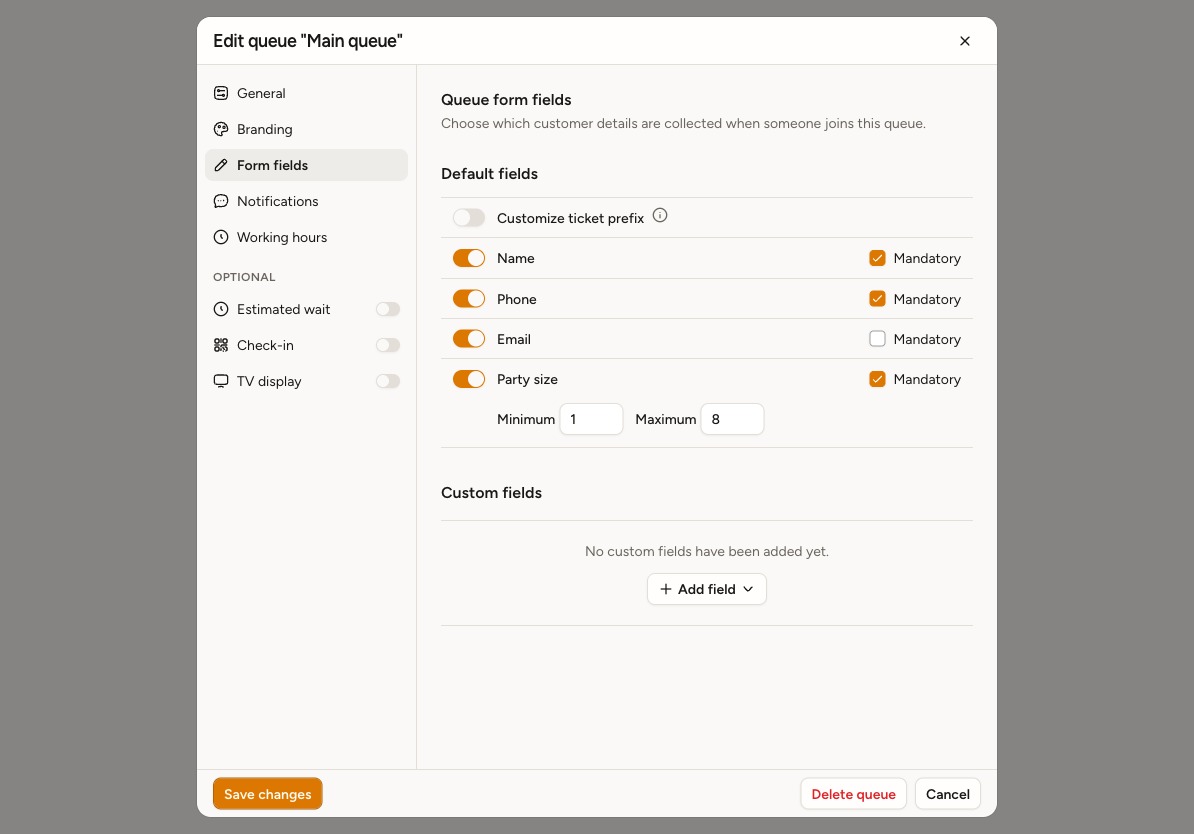
In Form fields, enable Name to collect a customer name in a single field on staff and customer join forms.
For queues that collect Party size, set Minimum and Maximum in the options below the field, and choose whether it is Mandatory. Staff entry forms also respect these limits.
3. Set when the queue is open
In Working hours, choose whether the queue follows the location hours or uses a custom schedule. Under Customization, turn on Check-in so the queue appears in Public check-in and kiosk mode, then save the queue.
4. Run a test entry
From the Location overview, use Check-in to open Public check-in or kiosk mode, or select Add to queue to add the entry as staff. Add a test customer, call them, and complete the visit. This confirms the join form, status actions, and notifications before service starts.