

Introducing the WaitQ website embed: your queue and bookings on your own site
Guests can now join your queue, order or book straight from your website, with a floating button or a form in a page. One line of code, on any site, on every plan.

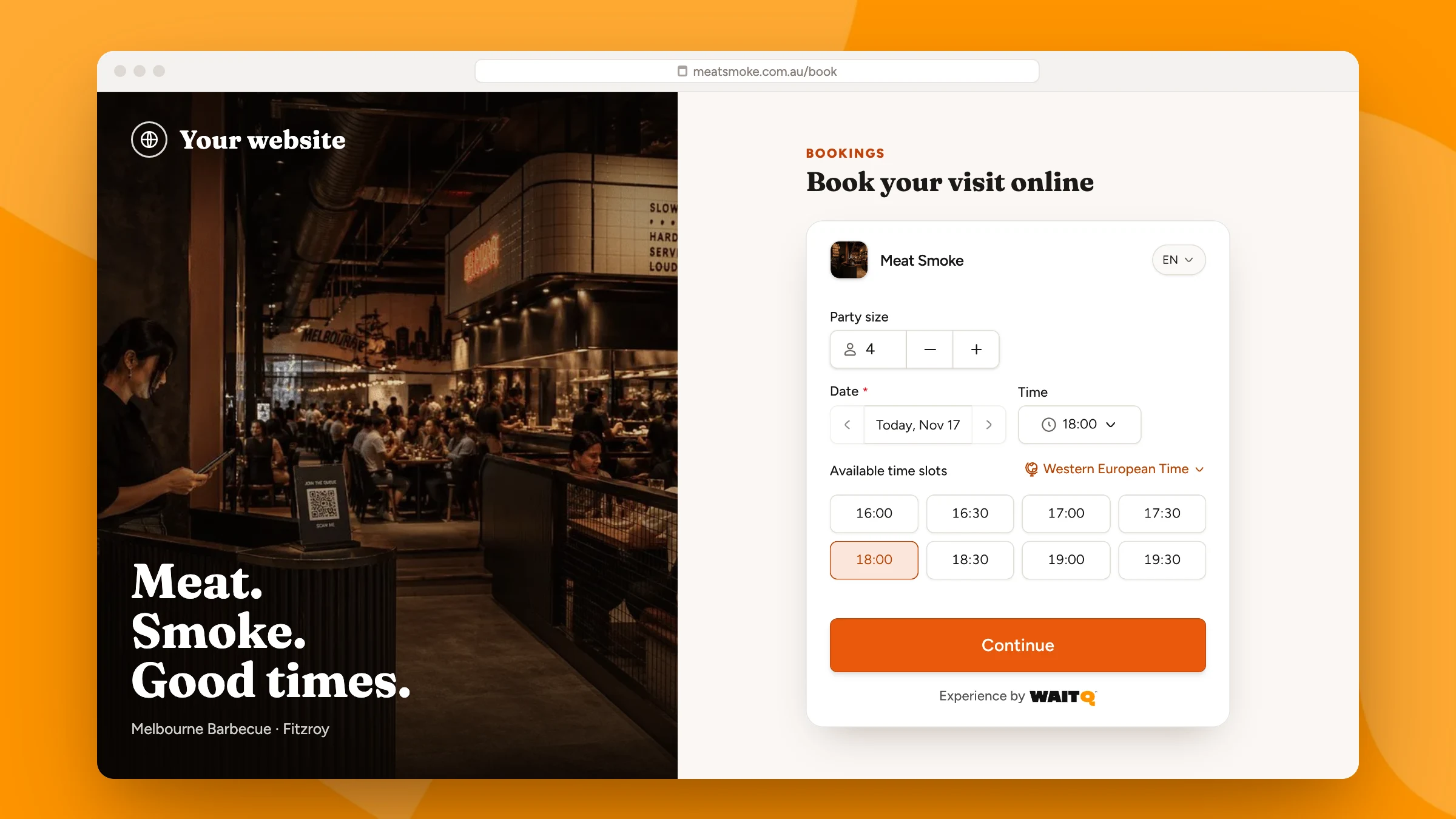
Your website is where guests look first
Before they walk over, most guests look you up. They open your website to check your hours, your menu or how busy you are. Until now, joining your queue or booking a table meant leaving your site for another page, and some never came back.
From today, guests can join your queue, place an order or book straight from your website. They fill in the same form as on your QR page, see their confirmation, and stay on your site the whole time.
Two ways to show it
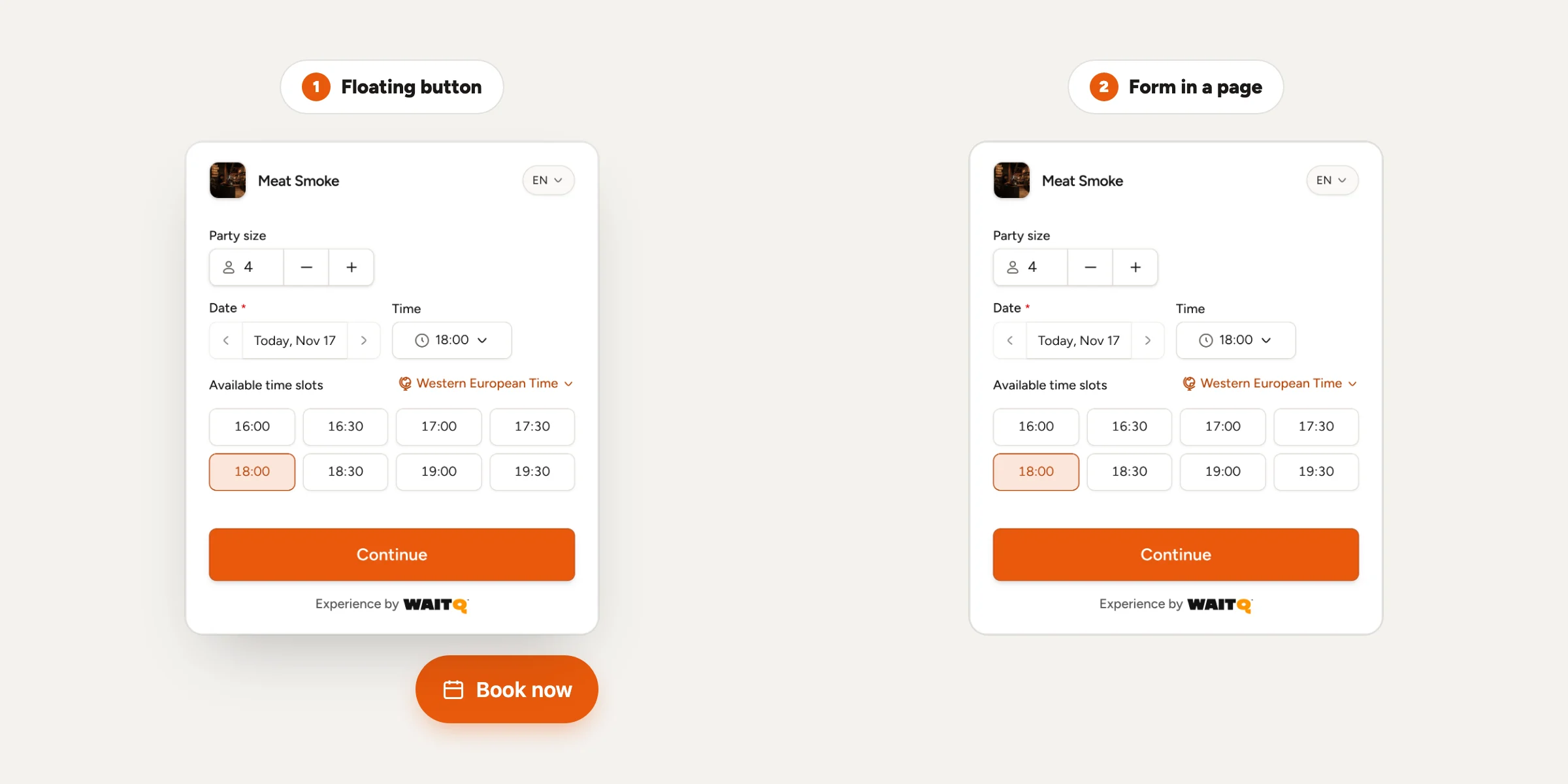
- A floating button in a corner of every page of your site. One click opens the form over the page, and on phones it fills the screen. Guests find it wherever they are on your site.
- A form inside a page, for example on your "Waitlist" or "Book a table" page. It loads only when a guest scrolls near it, so your page stays fast.
You choose what it shows. The whole location gives guests all your queues, orders and booking lists, grouped like on your location page. A single list opens its form straight away, which suits a "Book now" button.
The button takes your text and your brand colour, and the form shows your logo. Guests can switch between the same languages as on your public page.
What guests see after joining
After joining, guests see their number and estimated wait, or the date and time of their booking, and how you'll notify them. One click opens their full waiting or booking page in a new tab, where they follow their place live or manage their booking.
Your settings stay the same: working hours, party sizes, form fields, entry rules and notifications all work exactly as with your QR code.
One line of code, on any website
Go to Integrations → Website embed, choose the format and the lists, and click Copy code. Paste it into your site and you're done. It works on WordPress, Wix, Squarespace, Webflow, Shopify and any site that lets you add HTML. You'll also find Add to your website in the settings of each location, queue and booking list.
Once a guest opens the form, WaitQ lists the site under Active on, so you always know where your embed is live.
Add WaitQ to your website 🌐
Step-by-step instructions for WordPress, Wix, Squarespace and Webflow.
Built to keep your lists clean
A form on your website is open to everyone, so WaitQ checks that each guest is a person and limits how often the same device can join from your site. If a queue only accepts guests near your location, the location check opens in a new tab.
Included in every plan
The website embed is included in every WaitQ plan: Starter, Grow and Business. Business admins find it under Integrations in the dashboard settings. See everything WaitQ connects to on the integrations page, and follow the guest's side of the journey in How customers join from your website.
