

Keep the floor plan aligned with what is happening in your venue so your team can choose suitable tables. You need permission to manage seating to change occupancy.
1. Check the current table status
Open your location's Floor plans, select a zone, and choose Floor map. Use Now to return to the current service before seating a party.
Select a table to see its details. Read the status and occupancy information as well as the colour: a table may be available, reserved, seated, or blocked. A suggested placement represents expected use and should not be mistaken for guests already seated.
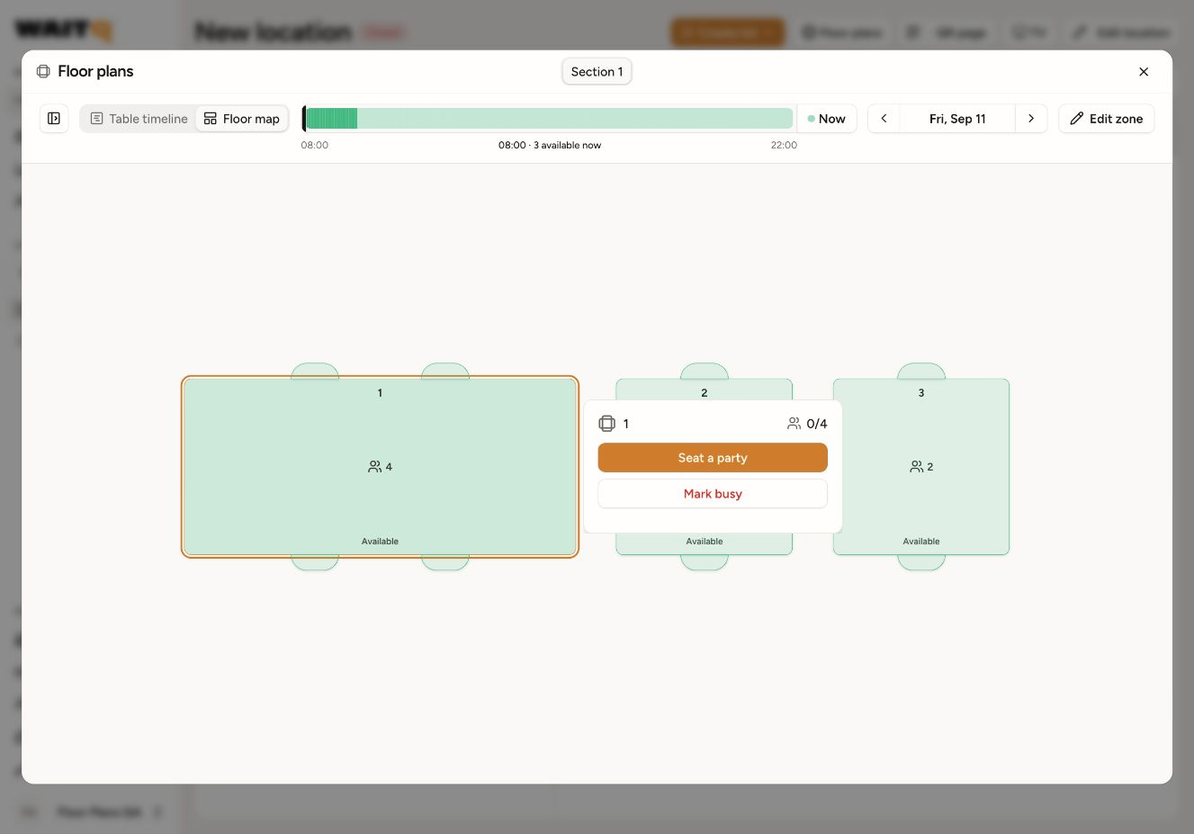
The example shows 0/4 on a four-seat table. The Seat a party action lets you choose a party; it does not mean a party is already seated.
2. Mark a table busy when needed
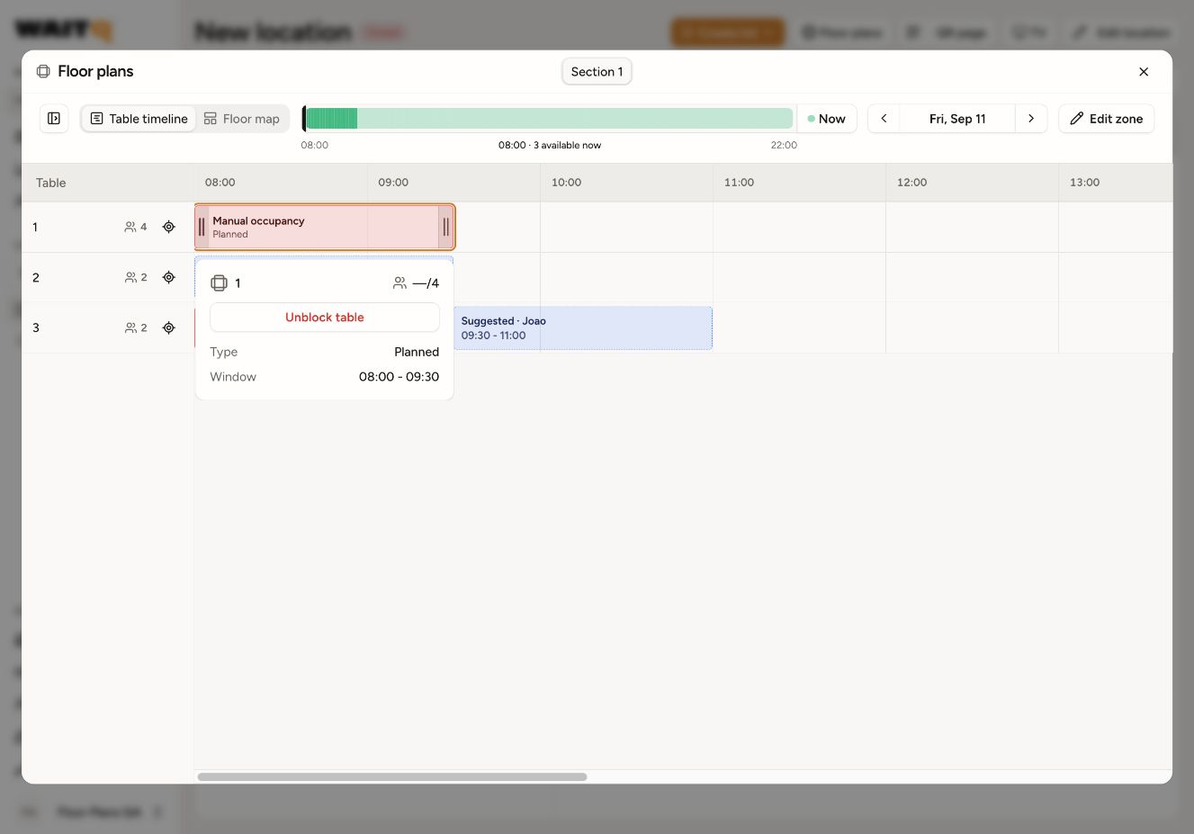
Select the table and use Mark busy when it is unavailable outside a normal guest assignment, such as a table temporarily taken out of service. This immediately creates a one-hour manual block starting now. To adjust the period, open Table timeline and drag the edges of the manual block.
Manual occupancy is shown in the floor plan and timeline. Check the affected table and time after saving so the block matches the real situation.
To block a future period, open Table timeline, choose the date, and select an empty slot on the table’s row. Click the busy-period preview to create the block, then drag its edges to adjust the duration.
3. Release the correct occupancy
Select the occupied table or its block in the timeline. Select the active occupancy to see the relevant action:
- End service: finish an active service when the guests have left and release its tables.
- Unblock table: remove a manual block that should no longer exist.
- Release table: release reserved tables when this action is offered.
These actions save immediately. Another reservation or blocker can still affect the table’s availability.
The guests are staying longer than expected
Check the expected departure in Table timeline. If the guest-service block has an editable end handle, drag it to extend the service period. You can also extend a manual block by dragging its end edge. Integration-controlled blocks and read-only zones cannot be edited this way.
Timed occupancy can expire at its recorded end. If the guests are still there and you cannot extend their service block, use Mark busy when the table becomes available to keep it unavailable.
Adjusting a reserved booking’s period opens Reschedule reservation? and changes the reservation itself. Review the previous and new times, then choose whether to alert the customer.
A table is free but I cannot assign it
Check the selected time, the party size, and whether the party's list is allowed to use it. See How to assign and change tables and How to choose which zones and tables a list can use.