

Assigning a table tells your team where a party should sit. You can choose tables from the floor map or from the table control on a guest's entry. You need permission to manage entries and seating.
Before starting, create a floor plan zone and check that the party's list can use the tables you want to assign.
1. Select the party in Floor plans
Open your location and click Floor plans. Choose Floor map and open the parties sidebar with the button beside the view switcher. Find the party in its queue or reservation lane, or use Search parties. A lane uses its list photo when one is configured, which can make similar lists easier to distinguish.
Select the party to see its size and table options. Check the selected zone and time. Use Now when seating guests during the current service.
2. Choose a suitable table
Select a table with enough seats for the party. Review the table details and the selection shown in the action bar. WaitQ may suggest a table; a suggestion is a proposed placement and still needs your confirmation.
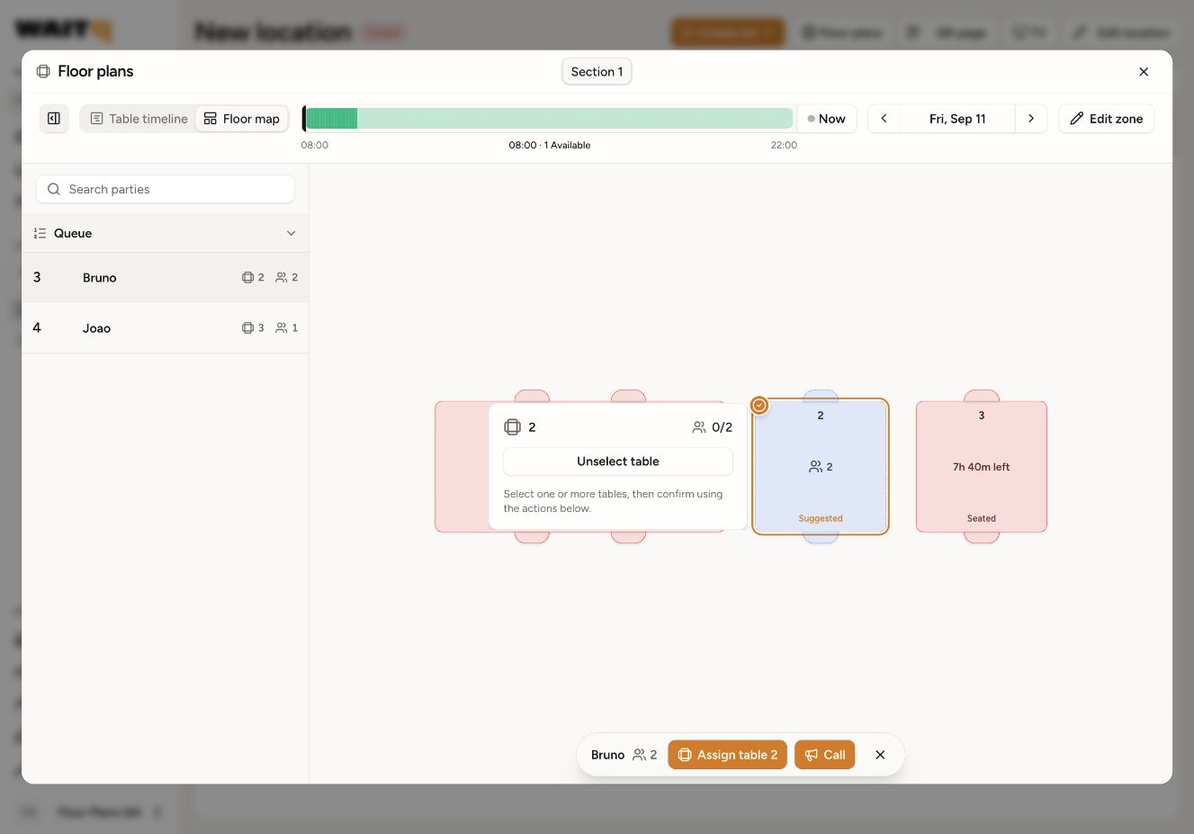
Click Assign table in the action bar to confirm the selected placement. The button includes the selected table number when applicable.
Call is a separate guest action. Use it when you intend to call the party, rather than simply save a table choice.
If a party needs several tables, see How to combine tables for larger parties.
3. Assign or change a table from an entry
On the Location overview or in the list, open the table control on the party's entry. Choose a table or combination from the picker. The confirmation includes the target table names: Assign table [name] for a new choice or Change to table [name] for an existing choice.
If nothing suitable is free now, review Available later and the Available at [time] options. Choosing a future option shows Plan table [name] (or Plan tables [names]). Planning saves a future table choice; it does not check in or seat the party. Planned tables can change until check-in, so review them before seating.
Use Tables Timeline from the picker when you need to check the timing of other parties before choosing. To move an active party, select its service in the floor plan and use Change table. Past or released services cannot be moved.
After confirming, check that the entry and floor plan show the intended table. Selecting an option without confirming does not finish the change.
Why is the table I want unavailable?
Check its occupancy at the relevant time, its seating capacity, and the list's allowed zones or tables. A table can be suitable in size but already occupied or reserved. See How to manage table availability and list table selection.